
I’ve recently started using Obsidian for notes and time tracking at work. Here’s a bit about my workflow and customizations I have made to Obsidian.
Time Tracking
To start with, I like tracking the time I spend on various tasks. This habit arose soon after I began working at my current job, when our team decided to start tracking time on all the things we did, like meetings, emails, chats, and actual sprint work. We started this practice because we felt we were not getting anywhere near that “ideal 6-hour developer day”. While the discipline it takes to keep track of time like this is hard at first, I really enjoyed the data this generated, and have more-
or-less continued the habit in my work life over the years.
Supporting that, my daily note starts with a section for time tracking:
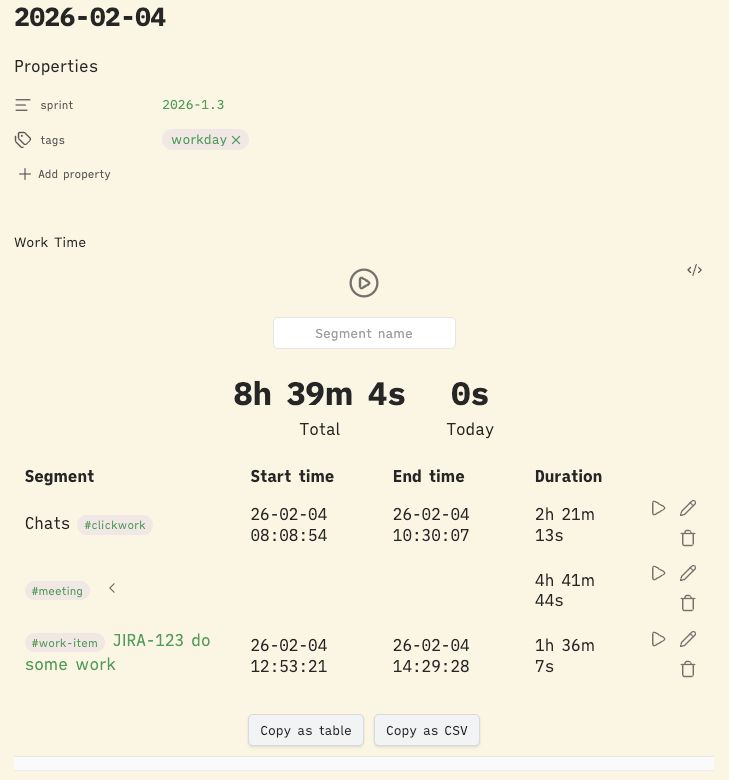
I use the Super Simple Time Tracker plugin for this. The features that are really nice with this plugin are that it only allows you to be single-threaded, so you can’t track time on multiple things simultaneously, and it allows you to have spans of time that roll up to one thing (you can see that with the #meeting element above).
Expanding that section shows how long was spent in each meeting:
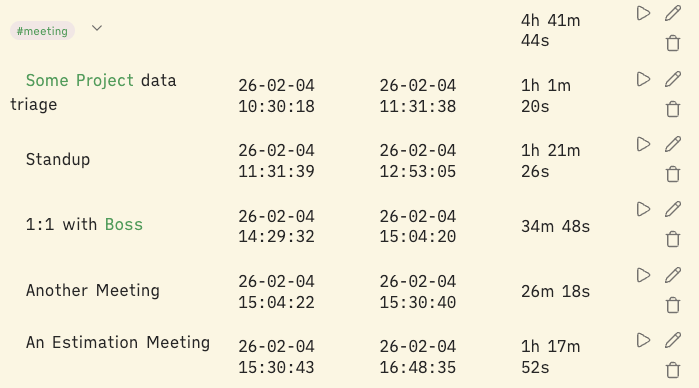
As you can see you can also have links and tags inside the descriptions of what work you are doing.
It always seems like recently I have very little time to spend on actual “hands on keyboad” work. In these screenshots, I spent less than two hours on sprint work, and almost five hours in meetings.
Tasks
The next portion of my Daily page is a Tasks query
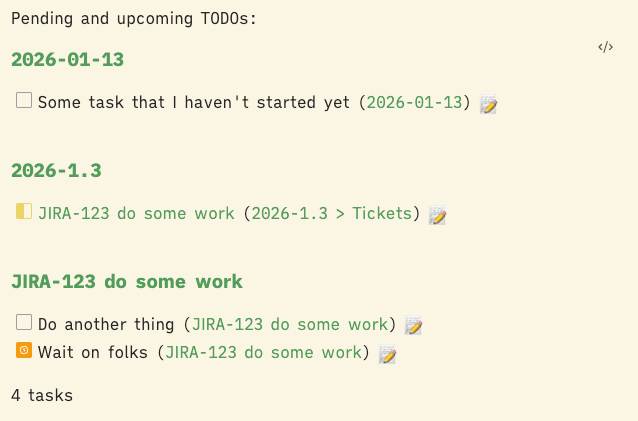
This is a single tasks query, gathering all the tasks from my vault that are not yet complete. This is powered by the Tasks plugin.
```tasks
not done
(due on or before the next 2 days) OR (no due date)
(scheduled on or before the next 2 days) OR (no scheduled date)

limit 20

# Group and sort the output:
group by filename
sort by due reverse
sort by description

# Optionally, ask Tasks to explain how it interpreted this query:
# explain
```
Basically this is just pulling all my not done tasks that either have no due/scheduled dates on them, or are due/scheduled in the next couple days. It then groups the tasks by filename, and you can see there’s a couple places I generally create tasks from.
I create tasks from my daily notes. These are the kind of ad-hoc tasks that landed on my plate, that I want to keep track of, but haven’t had a chance to actually finish yet (and they haven’t grown into something like a project yet).
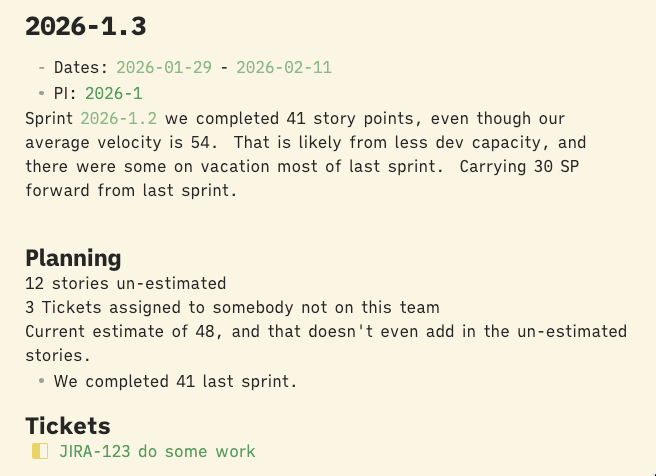
I have a note for each Sprint (2026-1.3) and create a task for each Story that is assigned to me (JIRA-123 in this example).
Then if the story itself is complex enough, I will also have various tasks I create on the story, and those are shown here too.
Task Statuses
I have slightly tweaked the statuses that are used. These are configurable in that Tasks plugin.
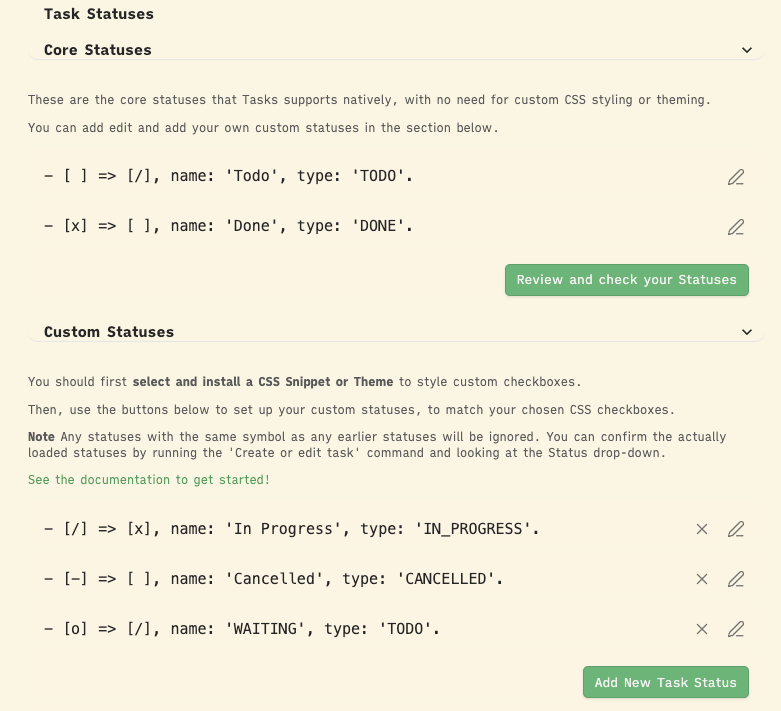
If you use more than the core statuses TODO and DONE it is helpful to add some custom styling to be able to distinguish the task states visually. I use a css snipped originating from https://github.com/netgamesekai/obsidian-checkbox-css that I have tweaked (I think just to add the WAITING status).
/*

obsidian-checkbox-css
https://github.com/netgamesekai/obsidian-checkbox-css

*/

body {
  /* checkbox colors */
  --checkbox: #999ba3;
  --checkbox-done: #59c583;
  --checkbox-wip: #ead467;
  --checkbox-forwarded:#6aadce;
  --checkbox-waiting: #f39c12;

  /* no strikethrough on completed tasks */
  --checklist-done-decoration:inherit;
  --checklist-done-color:inherit;
}

/* strikethrough on forwarded or cancelled tasks */

.task-list-item[data-task=">"],
.task-list-item[data-task="-"],
.HyperMD-task-line[data-task=">"] span,
.HyperMD-task-line[data-task="-"] span{
  color: var(--checkbox);
  text-decoration: line-through;
}

/* initialising */

input[type="checkbox"].task-list-item-checkbox:checked::after {
  display: none;
}

input[type="checkbox"].task-list-item-checkbox:checked {
  background-image: none;
  background-position: center;
  background-repeat: no-repeat;
  background-size: 70%;
  position: relative;
}

/* styling */

/* new task */
.task-list-item[data-task=" "] input[type="checkbox"].task-list-item-checkbox,
input[type="checkbox"][data-task=" "].task-list-item-checkbox {
  border-color: var(--checkbox) !important;
}

/* completed */
input[type="checkbox"][data-task="x"].task-list-item-checkbox:checked,
.task-list-item[data-task="x"] input[type="checkbox"].task-list-item-checkbox:checked {
  border-color: var(--checkbox-done) !important;
  background-color: var(--checkbox-done) !important;
  background-image: url('data:image/svg+xml,<svg version="1.1" baseProfile="tiny" id="Layer_1" width="800px" height="800px" viewBox="0 0 42 42" xmlns="http://www.w3.org/2000/svg"><defs></defs><path d="M 38.525 7.876 L 36.127 5.946 C 34.945 4.996 34.258 5.007 33.246 6.257 L 15.817 27.766 L 7.706 21.027 C 6.587 20.087 5.887 20.137 4.967 21.287 L 3.116 23.697 C 2.177 24.879 2.297 25.55 3.407 26.477 L 14.967 36.039 C 16.157 37.039 16.827 36.936 17.747 35.817 L 38.826 10.756 C 39.816 9.566 39.756 8.855 38.525 7.876 Z" style="fill: rgb(255, 255, 255);"></path></svg>');
}

/* working in progress */
.task-list-item[data-task="/"] input[type="checkbox"].task-list-item-checkbox:checked,
input[type="checkbox"][data-task="/"].task-list-item-checkbox:checked {
  border-color: var(--checkbox-wip);
  background: linear-gradient(90deg, var(--checkbox-wip) 50%, transparent 50%) !important;
}

/* forwarded */
.task-list-item[data-task=">"] input[type="checkbox"].task-list-item-checkbox:checked,
input[type="checkbox"][data-task=">"].task-list-item-checkbox:checked {
  border-color: var(--checkbox-forwarded);
  background-color: var(--checkbox-forwarded) !important;
  background-image: url('data:image/svg+xml,<svg version="1.1" baseProfile="tiny" id="Layer_1" width="800px" height="800px" viewBox="0 0 42 42" xmlns="http://www.w3.org/2000/svg"><defs></defs><polygon fill-rule="evenodd" points="28.566 40.819 8.5 20.751 28.068 1.181 33.002 6.114 18.365 20.751 33.5 35.885" style="fill: rgb(255, 255, 255); transform-box: fill-box; transform-origin: 50% 50%;" transform="matrix(-1, 0, 0, -1, 0, 0.000002)"></polygon></svg>');
}

/* waiting */
.task-list-item[data-task="o"] input[type="checkbox"].task-list-item-checkbox:checked,
input[type="checkbox"][data-task="o"].task-list-item-checkbox:checked {
  border-color: var(--checkbox-waiting);
  background-color: var(--checkbox-waiting) !important;
  background-image: url('data:image/svg+xml,<svg version="1.1" id="Layer_1" width="800px" height="800px" viewBox="0 0 24 24" xmlns="http://www.w3.org/2000/svg"><defs></defs><path d="M12 2C6.486 2 2 6.486 2 12s4.486 10 10 10 10-4.486 10-10S17.514 2 12 2zm0 18c-4.411 0-8-3.589-8-8s3.589-8 8-8 8 3.589 8 8-3.589 8-8 8z" style="fill: rgb(255, 255, 255);"/><path d="M13 7h-2v5.414l3.293 3.293 1.414-1.414L13 11.586z" style="fill: rgb(255, 255, 255);"/></svg>');
}

/* cancelled */
.task-list-item[data-task="-"] input[type="checkbox"].task-list-item-checkbox:checked,
input[type="checkbox"][data-task="-"].task-list-item-checkbox:checked {
  border-color: var(--checkbox);
  background-color: var(--checkbox) !important;
  background-image: url('data:image/svg+xml,<svg fill="%23000000" version="1.1" baseProfile="tiny" id="Layer_1" width="800px" height="800px" viewBox="0 0 42 42" xmlns="http://www.w3.org/2000/svg"><defs></defs><rect x="5.15" y="16.928" width="31.7" height="8.143" style="fill: rgb(255, 255, 255);"></rect></svg>');
}
These styles display IN_PROGRESS tasks with  , CANCELLED status with
  and a
and a strikethrough, and WAITING tasks with  .
.
Sprints
For each Sprint I will create a note where I mark down the dates the sprint runs, and just general notes during Sprint planning, or reminders for when it is time to do Retro. As mentioned above I will also create tasks for each Story I am assigned. I also have a link back to the Quarterly Planning note with the general information on that planning session.
Stories
For each story, or work-item, I will generally have a specific note for it too. Something like this:
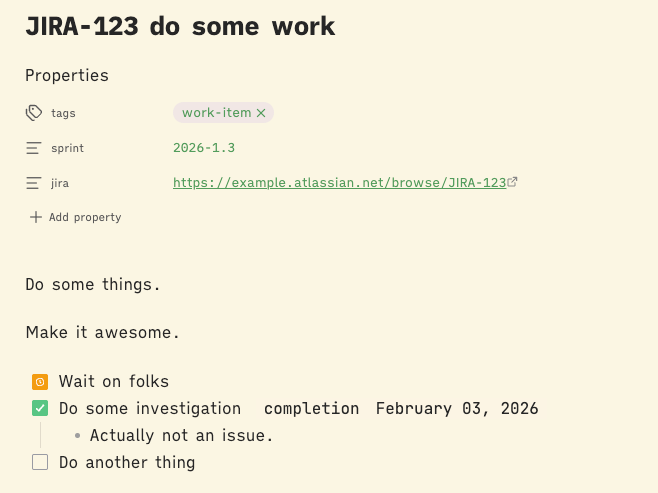
This is generally just a collection of links (external link to JIRA, obsidian link to the Sprint, etc.) and the random notes/tasks I generate while working on the ticket.
I organize these notes into a specific directory, based on the Sprint they live in.
Because I have a general structure all these work-item notes have, and that organization, I created a Quick Add Template that I use to create these notes. There are multiple plugins in play here, and it is not straightforward at all, but I will try to lay it out as best I can.
First, I use the Templater plugin. Obsidian’s built-in templating mechanism is quite limited, so I use this plugin to enhance the templating capabilities. I have a template for Stories that looks like this:
<%*
  const modalForm = app.plugins.plugins.modalforms.api;
  const result = await modalForm.openForm("Story");
-%>
---
tags:
  - work-item
sprint: "[[<% result.get("sprint") %>]]"
jira: https://example.atlassian.net/browse/<% result.get("ticket") %>
---
<% result.get("description") %>

<% tp.file.move("Sprint/"+result.get("sprint")+"/"+result.get("ticket")+" "+result.get("description")) %>
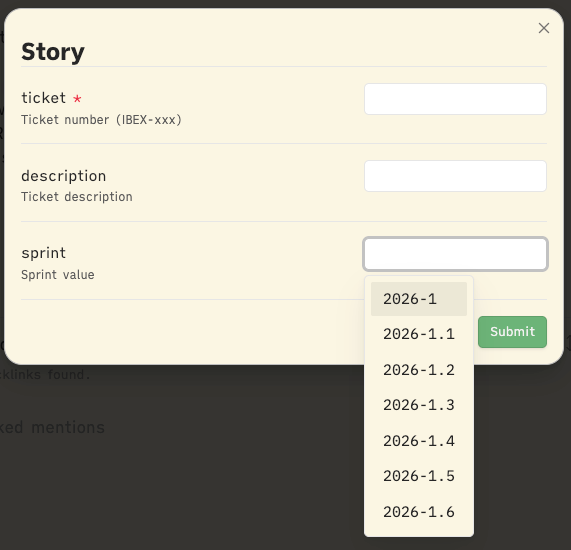
This template makes use of another plugin, the Modal Forms plugin. It opens up the “Story” modal and waits for me to enter in the information into that form, then proceeds with creating the rest of the file.
I’m grabbing some of the responses from that form for building up the note, adding the selected Sprint and ticket number, etc.
Line 13 finally moves the file to the directory structure I have, adding it into the directory for the sprint I have selected.
My Story modal has 3 fields, the ticket and description fields are simple text fields. sprint is a bit more complex, it is a Dataview field, with this query backing it:
dv.pages('"Sprint"').file.name.filter(n => n.startsWith('2026')).sort()It is just gathering all my Sprint pages that start with 2026, and will display them in a kind of dropdown picker.
The final piece here is yet another plugin, the QuickAdd plugin, which is basically just used to trigger adding that Templater template. In that plugin I have created a “Create Story” template (yes, too many things use the term “template” here). This plugin is set up to trigger my “Story Template” from Templater, and then insert a link to the created file where my cursor currently is.
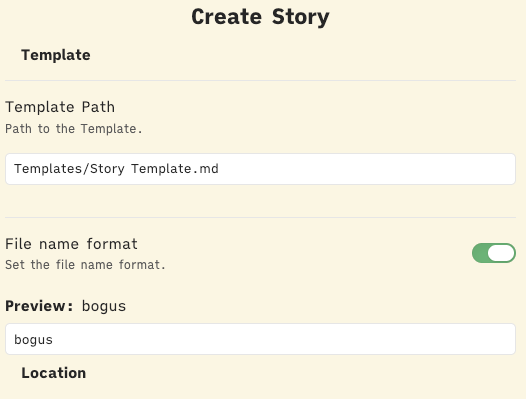
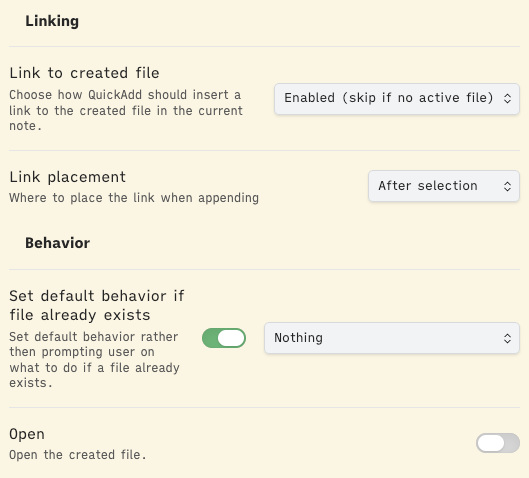
Because my Templater template overwrites the name of the file (based on what I add in the modal) the file name here ends up not being used (hence “bogus”).
Errata
That’s basically it. You’ll notice basically none of that has to do with actually taking notes, which is sad!
There are a few other plugins I have found useful, just to make the work in Obsidian go smoother or faster.
I was using the Tomorrow’s Daily Note plugin to generate the next day’s note, but with adding the Tasks query I haven’t had much need for that. I mostly had created tomorrow’s note at the end of the day to help remind me what I was working on, and lay out any context for my future self I thought I might need. But now I typically keep that context within story notes or other places more closely related to the task itself, and just have that Tasks query to remind me of what I started and haven’t completed, or what’s next on my plate.
Copy Inline Code is useful to easily copy simple code blocks.
I have Dataview installed, but I don’t do much with it, at least not yet. I think it is a dependency for the Tasks plugin though. And I hope to in the future add a kind of summary query to Sprint pages that will gather my time tracking for each day in that sprint, and give a cumulative view of where the time was spent in that sprint.
I have Natural Language Dates installed too, and mapped to a hotkey for quickly and easily adding in a date into my notes.
Lastly I have enabled the vim keybindings, and added the Vimrc Support plugin. Yeah, I’m weird. I have added a couple of special bindings in the vimrc file, those are below.
" Emulate Folding https://vimhelp.org/fold.txt.html#fold-commands
exmap togglefold obcommand editor:toggle-fold
exmap foldmore obcommand editor:fold-more
exmap foldless obcommand editor:fold-less
nmap zo :foldless<CR>
nmap zc :foldmore<CR>
nmap za :togglefold<CR>

exmap unfoldall obcommand editor:unfold-all
nmap zR :unfoldall<CR>

exmap foldall obcommand editor:fold-all
nmap zM :foldall<CR>

" Tab navigation
exmap tabnext obcommand workspace:next-tab
nmap gt :tabnext<CR>
exmap tabprev obcommand workspace:previous-tab
nmap gT :tabprev<CR>

" App reload
exmap reload obcommand app:reload

" tasks
exmap todo obcommand obsidian-tasks-plugin:edit-task
The comments in there are fairly explanatory.
The nmaps are setting things up so that typing zo in normal mode will open a fold, etc.
The exmap reload is so that I can type :reload to trigger Obsidian’s reload functionality.
And exmap todo so that I can type a line, and then escape and type :todo to bring up the Tasks edit modal. This should really be a hotkey instead of a vim command, but it is still kind of fun.